
Moving to Microsoft 365 is one of the biggest decisions a small business can make. The migration process touches every part of your operation, from how your team communicates to where your data lives.
At RIPE INNOVATION INC., we’ve guided dozens of businesses through Microsoft 365 migration planning. This guide walks you through each phase-assessment, planning, and execution-so you can move forward with confidence and minimal disruption.
Assessment and Discovery Phase
The first step toward a successful Microsoft 365 migration is understanding exactly what you’re working with. Most small business owners assume they know their current systems inside and out, but a proper assessment reveals hidden complexity. You likely have email stored in multiple places, files scattered across shared drives and personal computers, and integrations with third-party tools that aren’t documented anywhere. Without a thorough audit, you’ll miss critical dependencies and end up with broken workflows after you migrate.
Conduct a Comprehensive Audit of Current Systems
Start by inventorying your current email systems, file storage solutions, user accounts, permission structures, and any third-party applications connected to your infrastructure. Document which users need what access levels and which data is business-critical versus archive material. This inventory becomes your baseline for everything that follows.
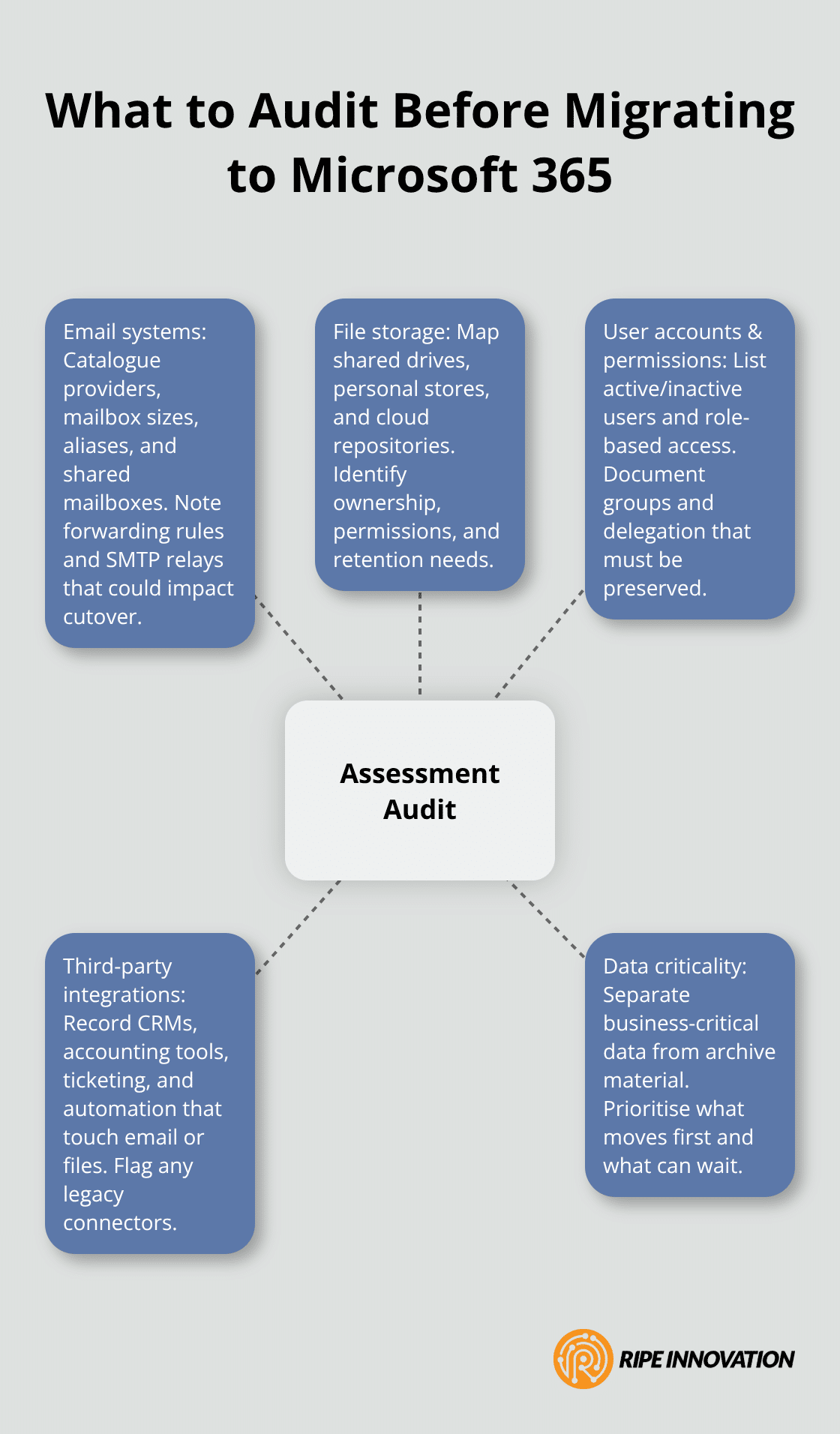
The SharePoint Migration Assessment Tool, available from Microsoft, scans your existing SharePoint environment and identifies migration-impacted scenarios before you commit resources. Even if you’re not using SharePoint extensively, this kind of structured assessment prevents costly surprises. The tool generates detailed reports that highlight which customizations, workflows, and configurations will require attention during your move to the cloud.
Understand Your Real Costs and Timeline
Licensing decisions made during discovery directly affect your budget and deployment speed. Microsoft 365 offers multiple subscription tiers, and selecting the wrong one wastes money or leaves you without essential features. Cutover migration, which moves all users at once, works well for organizations with 150 users or fewer and typically completes within one to three days depending on data volume. Staged migration, where you move users in batches over weeks or months, suits larger teams and reduces operational disruption but requires more planning.
The real cost isn’t just the subscription price-it’s the infrastructure you can shut down, the IT staff hours freed up, and the productivity gains from better collaboration tools. Microsoft 365 consolidates Word, Excel, Teams, SharePoint, and Outlook into one integrated system, eliminating redundant software licenses and reducing maintenance overhead. Calculate what you currently spend on email hosting, file storage, communication tools, and on-premises infrastructure, then compare that against Microsoft 365 pricing. Most small businesses break even within six to twelve months once they factor in reduced support costs and eliminated on-premises hardware expenses.
Identify What Your Team Actually Needs
User adoption determines whether your migration succeeds or fails. The worst approach is assuming everyone will immediately embrace new tools because they’re technically superior. Instead, talk directly with your team about how they work. Ask your sales staff what collaboration features they need, your accountants what reporting integrations matter, and your operations team what workflows they depend on daily.
Businesses face significant security risks, so security requirements should come from this discovery phase, not afterward. If remote work or bring-your-own-device policies are part of your operation, those constraints shape your security configuration in Microsoft 365. Map out which email rules, distribution lists, and calendar sharing arrangements people rely on, because these don’t automatically transfer to the cloud.
Many migrations fail because IT teams replicate current processes in the cloud without considering whether cloud-native features could improve productivity. You might discover that your accounting team would benefit from real-time co-authoring in Excel, or that your project managers could streamline workflows with Teams integration. Building this understanding during discovery prevents post-migration frustration and positions your team to actually use the capabilities they’re paying for. With your assessment complete and user needs documented, you’re ready to move into the planning phase, where you’ll translate these findings into a concrete migration strategy.
Planning and Preparation Strategy
Discovery has shown you what exists; now you need a concrete plan for moving it to Microsoft 365. This is where most migrations stumble. Small business owners either rush into execution without proper preparation or get trapped in endless planning cycles that delay the move indefinitely. The key is creating a realistic timeline that accounts for your actual data volume and user count, not generic estimates from vendor websites.
Create a Detailed Migration Timeline
Microsoft’s own data shows that cutover migrations for organizations with 150 users or fewer typically complete within one to three days, while staged migrations spread the work across weeks or months depending on your batch size and resource availability. Start by calculating your mailbox sizes and total file storage-this determines which migration method works and how long execution actually takes. If your largest mailboxes exceed 10 gigabytes, plan for slower throughput and longer migration windows.
Your timeline must account for queue time in the Mailbox Replication Service. Many organizations underestimate this bottleneck and schedule migrations too tightly, creating cascading delays. Build in buffer time, especially if you’re moving more than 50 mailboxes simultaneously.
Establish Clear Communication and Change Management Plans
Next, appoint someone who owns the migration project. This person needs real authority to coordinate between IT, department heads, and executives, not just technical execution responsibility. Communication must start before migration begins, not during it.
Tell your team the timeline, what will change, and who they contact when something breaks.
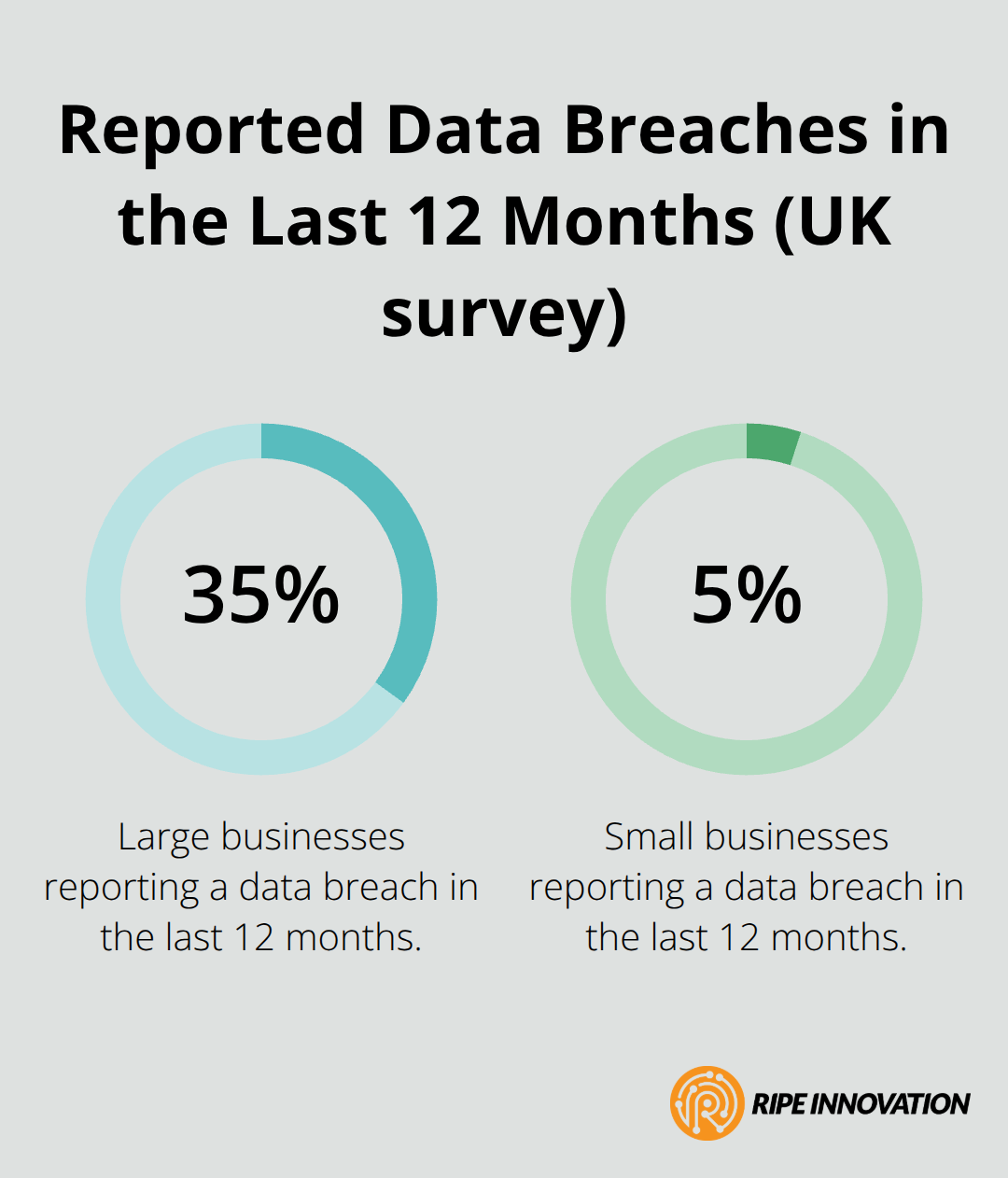
Remote work and bring-your-own-device policies require you to configure single sign-on and multi-factor authentication during planning, not after go-live. These security measures aren’t optional additions-data breach in the last 12 months affected 35 percent of large businesses and 5 percent of small businesses according to the UK government’s Cyber Security Breaches Survey, making security configuration foundational to your planning, not an afterthought.
Select the Right Migration Tools and Partners
Selecting migration tools and partners determines whether you execute smoothly or face data loss and extended downtime. Microsoft Migration Manager and SkyKick are industry-standard tools that handle email, calendars, and contacts reliably, but they work best when your network bandwidth and source system performance support them. If you’re migrating from Gmail or other non-Exchange providers, specialized Gmail onboarding paths exist within Microsoft’s toolset.
For SharePoint and OneDrive migration, the SharePoint Migration Tool handles document transfer, but large repositories require distributed load across multiple migration servers to avoid throttling your source system. Third-party vendors like BitTitan, CodeTwo, and Transvault offer advantages if your environment includes Notes, GoDaddy, or other legacy systems that Microsoft tools don’t handle efficiently.
The migration concurrency setting-how many mailboxes move simultaneously-defaults to 100 if your source system can handle it. Start conservatively at 10 concurrent migrations, then increase if your on-premises hardware isn’t struggling. Partnering with a certified Microsoft partner or experienced migration firm reduces risk substantially. These partners handle end-to-end planning, execute migrations during off-hours to minimize disruption, provide zero-data-loss guarantees, and deliver post-migration training so your team actually uses the new tools rather than reverting to old habits. The investment in professional services typically pays for itself through faster deployment, fewer user support tickets, and higher adoption rates than attempting migration internally without dedicated expertise. With your strategy locked in and tools selected, you’re ready to move into execution, where careful coordination transforms your plan into reality.
Execution and Deployment Process
Execution is where planning meets reality, and small business owners often underestimate how much coordination matters during the actual move. You’ve completed your assessment, locked in your timeline, and selected your tools. Now you need to execute without creating chaos that disrupts your team’s ability to work. The difference between a smooth migration and a painful one comes down to how carefully you sequence the work, configure your cloud environment before cutover, and prepare your people for what’s about to change.
Schedule Migration During Off-Hours
Start your migration during off-hours when nobody checks email or accesses files. Most small businesses run their cutover on a Friday evening or Saturday morning, which gives the weekend as a buffer if something needs adjustment before Monday morning. If you’re moving 150 users or fewer, your migration completes within one to three days according to Microsoft’s own timelines, so a weekend window usually works. Larger organizations using staged migration move users in batches-typically 20 to 50 at a time-which spreads the work across weeks. This approach lets you catch configuration problems with a small group before they affect everyone.
Transfer Data and Verify Throughput
During the migration window itself, your migration tool transfers emails, calendars, and contacts from your source system to Microsoft 365. Microsoft Migration Manager or SkyKick handles this transfer, but your network bandwidth matters enormously. If your internet connection struggles with heavy upload traffic, migrations slow down dramatically. Test your actual throughput before migration day by running a pilot migration with 10 to 20 sample mailboxes. This test reveals whether your network can sustain the migration speed you’re planning, or whether you need to adjust your batch sizes and timeline. Contact your ISP to confirm your allocated bandwidth and to get details about restrictions.
Configure Cloud Environment Before Cutover
Configuration work happens before and during migration, not after. Your IT team or migration partner should have already configured your security policies, single sign-on, and multi-factor authentication in Microsoft 365 before cutover begins. Email rules, distribution lists, and calendar sharing arrangements need to be recreated in the cloud because they don’t automatically transfer from on-premises systems. This is where many migrations stumble-IT teams assume cloud email works like their old system and skip this step. It doesn’t. If your accounting team relies on a specific email rule to automatically file invoices, or your sales team uses distribution lists for client communications, these must be manually configured in Exchange Online before users arrive. Create a detailed configuration checklist during your planning phase and assign responsibility for each item.
Enable Security Controls and Verify Synchronization
Post-migration, verify that mailbox synchronization completed successfully, then enable the security controls you configured earlier. This verification step prevents users from accessing incomplete mailboxes or encountering missing data after they log in. Your migration partner or IT team should run through a checklist that confirms all mailboxes transferred completely, all files landed in OneDrive and SharePoint, and all calendar data synchronized properly.
Train Users and Provide Immediate Support
User training starts immediately after go-live, not weeks later when people have already developed workarounds using their old habits. Schedule training sessions for small groups rather than forcing everyone into one large meeting. Thirty minutes of focused, hands-on training beats an hour of generic slides.
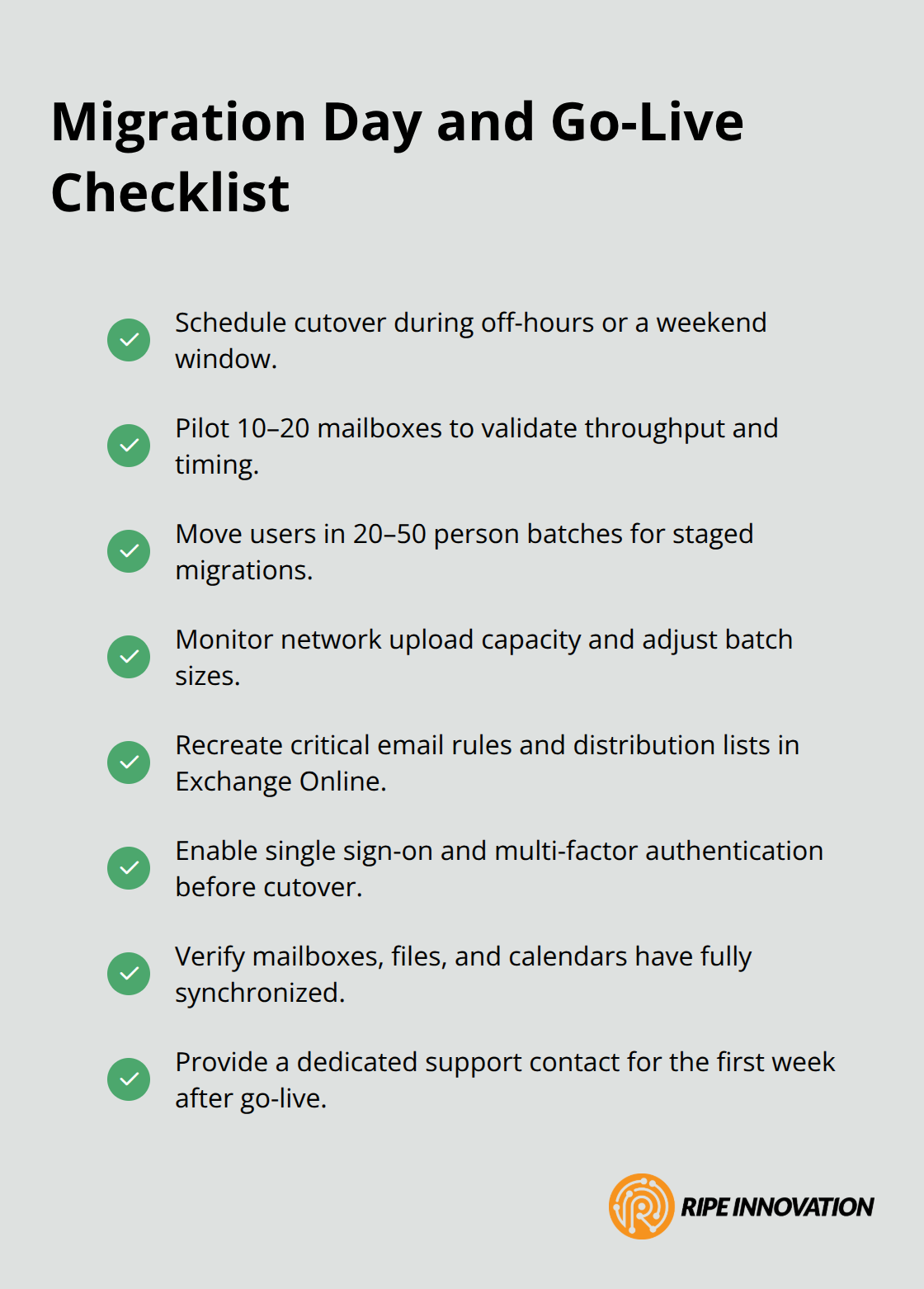
Show your team how to find files in OneDrive and SharePoint, how Teams replaces email for collaboration, and where their old email lives in their archive. Assign a dedicated support person who’s available for the first week after migration. Most user questions cluster in the first few days, and having someone immediately available reduces frustration and adoption problems significantly.
Final Thoughts
Your Microsoft 365 migration planning process moves through three critical phases: discovering what you actually have, planning how to move it responsibly, and executing the transition with minimal disruption. The businesses that succeed appoint a project owner with real authority, involve their team from the start rather than surprising them at cutover, and invest in proper security configuration instead of treating it as an afterthought. They test their network bandwidth, verify mailbox synchronization after migration, and provide hands-on training within the first week-these fundamentals matter far more than the specific tools you choose.
Post-migration challenges emerge predictably, but they resolve with targeted support and clear communication. Users forget where files live in OneDrive and SharePoint, email rules don’t work the way they expected, and some people resist using Teams for collaboration because email feels safer. Your dedicated support person during the first week prevents most of these problems from becoming ongoing frustrations that undermine adoption.
The real value of Microsoft 365 appears months after migration completes, when your team stops maintaining on-premises servers, your IT staff spends less time on infrastructure and more time on strategy, and your people collaborate more effectively because the tools are finally integrated. If you’re managing this migration internally, we at RIPE INNOVATION INC. specialize in guiding businesses through cloud transitions with minimal disruption and can handle the technical complexity so your team focuses on running your business.